
Technology
- Rivian Halloween Update Turns R1, R2 Into Ghostbusting EVs Through Nov. 2
- Walter Koenig, Star Trek’s Original Chekov, Dies at 90: ‘He Loved You Too’
- Apple’s ‘Pro and Tell’ Event: Everything Announced So Far This Week
- AI Killed the Homework Era
- Are We All Maxxed Out? Dictionary.com Names ‘Maxxing’ Its 2026 Word of the Year

Custom Search
News
- Trump administration attempting to prosecute former FBI Director James Comey again
- Trump administration pushes for food assistance card upgrade to fight fraud
- Judge says DOJ illegally fired the daughter of former FBI director Comey
- AI giant Anthropic files for an IPO that could break records
- Australian judge rejects prisoner's human rights challenge to Vegemite ban
Feed aggregator
Reviews
- Amazon Kindle (2026) review: this ereader is like an old book with a new cover
- Audeze Maxwell 2 ANC review: an excellent, though not essential, upgrade for the best-sounding gaming headset I’ve ever used
- ClearNym data removal service review
- Oppo Pad 5 Pro review: a premium, big-screen tablet without the price tag
- Mozilla Monitor data removal service review
New forum topics
UK workers are handling personal tasks during work hours — and they say it makes them more productive
- Half of UK workers admit to taking personal breaks daily, four in five take 30 to 120 minutes
- Household chores and personal errands are the most common activities
- European workers take fewer breaks and spend less time on them
New research has claimed three in four (76%) UK employees handle personal tasks during working hours at least a few times a week, with half (48%) doing so every single working day, but it might not be such a bad thing.
The vast majority (86%) of respondents in a new LiveCareer study reported that taking short personal breaks during working hours actually helps to improve overall productivity, with a further 11% seeing no meaningful impact. That leaves just 3% who believe there could be harmful effects.
In fact, only 5% of workers choose never to handle personal tasks during working hours, challenging traditional definitions of productivity at work.
Taking personal breaks at work helps to improve productivitySpread across the working day, nearly three in five (57%) spend between 30 and 60 minutes on personal tasks, with another one in five (19%) spending between one and two hours.
And by far the leading distraction are household chores (54%) and personal errands (51%), which are likely most synonymous with hybrid and remote working.
But despite illustrating just how widespread personal breaks, LiveCareer's data reveals some interesting geographical differences, positioning the UK in a totally different ballpark to other European countries.
While around half (48%) of British workers take personal breaks daily, only around a quarter (27%) of European employees do the same. The figures also point to European workers spending less time on breaks when they do take them.
What the report fails to note is just how productive workers are from each country, to detail whether taking personal breaks has a positive or negative impact on work, however British workers are clearly redefining what productivity looks like in a hybrid working landscape thanks to the added flexibility.
"For employers, the findings suggest that occasional personal breaks are no longer viewed by employees as time lost but as part of a more sustainable approach to managing work and life throughout the day," the report concludes.
Categories: Technology
‘There's definitely been a return to less technologically driven products’: Bose president Raza Haider talks releasing $99 wired earbuds with no app or AI, and why they're only here because his daughter thinks they’re cool
- Bose recently launched $99 / £99 'Noise Cancelling Wired Earbuds'
- Also, Bose is 'happy to take credit for making open-ear mass market'
- Bose's President of Premium Audio spoke to me about both developments
Last month was huge for Bose's earbuds output, thanks to the release of not one but two successors to the excellent Bose Ultra Open, a delightfully emo collab on the company's flagship cans and a set of wired, inexpensive earbuds that boast ANC, controlled by the inline remote.
So hang on, on the one hand we've got an evolution on a groundbreaking, clip-style, wire-free product Bose pioneered just over two years ago, (something President Raza Haider says he's "happy to take credit for — making open-ear mass market"). And on the other hand we have… wired earbuds like it's 2003?
Yes. And Bose President of Premium Audio, Raza Haider, is happy to talk about the nostalgia-driven technology trend many of us are seeing. After all, who could forget the various 'digital detox' resolves at the start of the year, compounded by the advent of the great privacy revolt concerning glasses, TVs and even wireless earbuds that want to know a little too much about us?
I start off asking Haider simply, "Who knew wired earbuds would be so popular in 2026?"
"Right? I know", Haider laughs. "It was a funny story actually. Over the last three, four years, the team's done a really good job of being able to capture insights and turn them into products much faster than we historically were able to.
"So the idea [for the wired earbuds] actually came a year and a half ago, when I was dropping my daughter off at university. We saw them everywhere. And my daughter was like, 'You know, these are the coolest things ever.'
"And she's like, 'A year ago, we would have made fun of kids who had wired products, and now we all wear them.' So we came back and as a group back in the office, we're like, 'You know, we should do something about it.'
"We saw the trend, but we saw that all the products in the market didn't have great quality audio — none of them had noise cancellation. So, typical Bose, we wanted to redesign something that was a big part of our history and DNA, and bring back something a little bit more retro, a little bit more fun.
"It's a little bit of an homage. I don't know if you remember the old Bose [wired earbuds], it had the little block in the middle, so we kept the block, except it's more like retro color blocks versus the large, big thing.
"These launch in Europe on the 15th October, but we launched them for presale in America on Monday. It is now Wednesday, and they're gone. They're sold out."
'Something is definitely happening'(Image credit: Bose)I'm always keen for presidents of audio companies to talk to me about any trends they're seeing. Haider doesn't shy away from telling me how much he thinks this particular trend might stem from buyers avoiding apps that require data collection, as well as trying to bypass the more intrusive aspects AI.
Is that why people are heading back to wires? "There's two dimensions to it. One, there is something larger happening, whether it sticks or doesn't," he said. "You used the term 'digital detox' — now whether it's trust or whatever it is, there's something happening.
Companies, I think, do realize that they need to do a better job of earning consumers' trust, not letting them feel like there's an invasion of privacy
Raza Haider, Bose President of Premium Audio
"Most tech companies will figure out a way around it. There's no way we're going to back away from technology — the technology is here to stay. But companies, I think, do realize that they need to do a better job of earning consumers' trust, not letting them feel like there's an invasion of privacy. So I think one part is definitely that, there's a return to less technologically driven products. That being said, there's a lot of tech in these that makes these great, right?"
He shows me the earbuds and I have to agree, they're pretty cool. But Haider isn't done. "The second part is this: there is a certain convenience and almost comfort in this," he continued, "and I think this is where technology actually should help.
"So, you can leave these in your bag for weeks on end and never lose a charge, never worry about a connection, never have to worry about a sensitive area. You just pull them out and you plug them into your phone physically. There's no app, no settings, and you just go — that's it!
"There's something oddly satisfying about taking this lovely silicone wire, playing around with your hands, hearing the physical click into the interface; you've got actual buttons for volume, and so it's just oddly fun."
'I think the average consumer doesn't know what a Bluetooth codec is, and they couldn't care less' (Image credit: Bose)I ask Haider how much he thinks the knowledge that Bluetooth codecs (however improved) still can't quite compete with wired audio for resolution plays a factor in the wired trend? Or is it simply that physical media is having a moment and if you've got a CD Walkman, you want wired buds?
"It's both", he answers. "I think the average consumer doesn't even know what a Bluetooth codec is, and they couldn't care less. All they know is that when they have a wireless headphone, it sometimes drops out, and this doesn't.
"That goes back to my earlier point; it's reinforcing to technology companies that technology needs to work in a way that's invisible to consumers. The days of people using technology just for technology's sake? We've moved past that for certain categories.
"It also goes back to my point on re-plumbing our company's operating model and product development to be able to move faster to capitalize on trends, because there always will be trends.
"The trend of wired now? There'll be a trend for something else. There are trends for colors too. We've done a great job over the last couple of years of launching I think 60 colors to take advantage of that. Companies have to be a lot more nimbler in listening and adapting to consumer trends."
Let's be completely open(Image credit: Bose)As well as literally writing the book on active noise cancellation, Bose pioneered what I like to call the 'ear cuff style' open earbuds, with the Bose Ultra Open. To be clear, this was in February 2024, a time when nobody else was doing that.
Did Haider anticipate how popular that particular design would become, and why does he think production of such designs has skyrocketed since? "Yeah! I think as a category overall, it's like the fastest growing category in consumer wearables, right?" he said. "We saw there was a huge need for people to have an alternative to in-ear products.
"For many reasons, starting from the obvious simple logic, in-ear products don't fit in everyone's ear. Some people don't like jamming stuff in their ear. Then, there are many instances where you want to actually be more aware of your surroundings, where it's actually safer to be aware of your surroundings. You're walking home late night, you're going for a run, you're out walking the dog, you want to hear the cars, the roads, the fire trucks.
"There are also many places where there's a social cue — where having one earbud in is disrespectful, people don't engage with you, you lose the human connection. But having a cue or clip which looks and feels like jewelry? It feels more inviting, you don't feel disconnected.
"And so as a result of that, we took a bunch of technology we had, and we spent a lot of time actually designing that cuff, much more than the 10 months it took for the wired earbuds.
The best thing that can happen is, everyone copies us. And that's what happened
Raza Haider, Bose President of Premium Audio
"We were very deliberate about form, fit, feel, design, design intent and look. And when we launched it, people actually asked us whether this would take off, whether people would understand what it is, whether it'd be alienating, would men want to wear something that looks like jewelry? Our answer was, 'We don't know. We've heard our consumers, they said they wanted it, we're giving them an option for something new.'
"And the best thing that can happen is, everyone copies us. And that's what happened. In the last two years, this thing has blown up."
La vie en Bose? (Image credit: Future)Our time together is coming to an end, but I'm keen to ask where Haider, as head of a market leader and pioneer in the portable audio space, thinks consumer audio will be in 10 years?
"Given how fast things are changing now, it seems almost impossible to make a prediction," he said. "But let me give you a few just general trends, right? There's always a nostalgia-driven customer, and companies have to be positioned to be able to successfully capitalize on trends.
"Companies well-positioned to capitalize on trends will be at an advantage. But from a tech standpoint — especially with what's happening right now with AI and the pace at which things are getting smarter — I think you'll see edge or wearable devices becoming a lot more intelligent and contextually aware of what a user wants to do.
"As a result, I think you're going to see a lot more fragmentation in the combination of things a user puts on their body, to optimize something that they're passionate about.
"People will soon realize that most of us have a passion point around something. For some people it might be music, for some it might be health and fitness, for some might be wellness, some might be an active lifestyle, some might be content creation, some might be creating and producing.
"And for all of those people, there's a different set of both awareness and sensory capture and sensory orchestration, let's say, that will allow you to do what you're passionate about better. And companies that realize that, and deliver something that's more consumer and passion point-centric, win.
"So, what my daughter will want to do with the combination of her earbuds, her phone, and her watch would be very different than what you and I might want to do, which will be different from someone who wants to go on a run, which will be different from someone who might be interviewing someone at a concert."
It's an insightful and hopeful look at a more tailored wearable future. Will we still be embracing wires, or will wireless audio finally be hi-res enough (and carefree enough) to be the better standard? Time will tell. But as a daughter myself, I for one really hope the people in charge will always listen to theirs.
Categories: Technology
Governance is driving the UK's next wave of jobs
The conversation around AI and the jobs market is dominated by anxiety. People worry that roles will be lost to agents – that the job market will dry up from the impact of AI. As a result, there will be a general constriction in the volume of career opportunities out in the world. But is this concern well-founded, what does the data indicate – is it a bleak outlook?
Drilling down into the latest trends and labor market statistics, we can see that the facts paint a different picture. What’s going on? It’s quite a positive shift with the data showing that the job market is in fact rebounding and settling around AI.
Job postings mentioning AI have surged. Since last year, specialist AI job postings have increased by 61% in the UK. This is according to PwC’s AI Jobs Barometer, recording 68,000 new roles and bringing AI hiring volumes back to around 2022 levels. Why are we seeing this uptick? The rise in hiring reflects a broader pressure on companies to deploy and manage AI effectively.
The new AI jobs driveFrom a safety standpoint, we’re seeing concerns mounting around open-weight models. We’re also seeing mounting pressure from AI legislators and industry watchers, calling for watertight regulation and governance processes to be put in place.
That pressure has direct implications for workforce strategy – are you hiring the right talent for AI management, do you have the skills in place within your organization to best handle AI operations? Better AI starts with people, and this is where we’re seeing the job market respond over time.
AI roles are vital for the success of the UK AI economy. According to Coursera research, 88% of leaders agree that planned AI investments will not succeed without increasing investments in skills development. The future of work will be defined by those who navigate these changes effectively – knowing how to work seamlessly alongside AI is critical.
The conversation around AI has been dominated by fears of automation replacing workers. But our UK research tells a very different story. While 85% of organizations are already using AI agents in workflows, businesses are increasingly investing in the people needed to govern, secure and scale them.
Among UK IT leaders: 65% expect overall headcount to increase over the next three years, compared with just 14% expecting it to fall. On top of this, only 8% say AI agents are primarily eliminating jobs today. Meanwhile, 48% are hiring AI agent operators, 31% are hiring security, risk and compliance specialists, and 26% are hiring AI ethics and governance specialists.
AI governance becomes a growth functionThis is a positive hiring strategy shift, generating scope for AI upskilling, and talent pool growth within the UK economy. What we’re seeing here is that AI governance has become a growth function. Historically, in a negative sense, governance has been framed as a constraint designed to slow down innovation for safety. In the agentic era, that attitude is being reversed.
Strong governance has become the ultimate accelerator. With the UK’s rigorous focus on expanding AI investment and infrastructure, governance needs to be front-of-mind for those innovation-hungry organizations. Additionally, according to our research, nearly 94% of UK organizations say stronger governance would help them move faster with AI, while 93% believe it's essential to scaling AI responsibly.
This is about a concerted focus on ‘re-plumbing’ fundamental structures. UK business leaders understand that teams cannot move fast without confidence in their safety structures. Without clear guardrails, organizations trying to scale AI hit a wall. Employees can leak corporate data, or autonomous systems can surface restricted content. Governance, permissions, and access controls make AI trustworthy, transforming compliance into a growth engine.
How AI is creating new careers, not just changing existing onesLLM Engineer, Prompt Engineer, AI Governance & Compliance Manager, Chief AI Officer – these are unique new roles we are seeing. AI job risk has been widely discussed in the media, but in fact a bump in opportunities is happening – new opportunities are being created for new, focused AI roles.
As emerging technology becomes embedded into day-to-day operations, demand is growing for specialists who can oversee AI systems, manage risk, ensure compliance and build trust.
For candidates looking to enter this field, knowing how to work alongside digital agents will be the baseline competency of the 21st century – those entering the workforce will increasingly need to build AI literacy. This is where the job market is heading, and skills strategy must align with that too. And it’s not just for deeper technical knowledge – it’s the skills to interrogate and control AI tools from a critical thinking perspective.
The ‘human in the loop’ discussion is not going away – we can see from machine-vs-machine cyber threats that human control is more important than ever. The question is, how do I become the person for that job? For those in the job market seeking these kinds of opportunities, the goal must be a hybrid skill set blending technical literacy with human judgment
The data disconnect with AI enginesGovernance is only part of the opportunity. Data and knowledge management are becoming equally important. What we’re seeing now, in that wider ‘re-plumbing’ discussion, is that data libraries are also failing.
While 96% of organizations say access to company knowledge is critical for AI success, only 32% have connected AI agents to trusted internal content across multiple use cases. This disconnect is hurting the growth potential of AI, and limiting its scope to single-use, isolated areas.
Without this connection, agents are left blind and prone to errors. This content disconnect is the primary reason why enterprise pilots stall. Bridging this operational gap requires organizing and securing corporate content pools, and thus hiring the right talent for the job – in the process, creating a massive, multi-year runway of work for data stewards and AI operators.
These kinds of needs or requirements can’t be ignored – especially by larger enterprises that are betting big on AI ROI. They need to iron this out now, and will look to hire the right people for that process.
On the horizonIt’s true there has been significant disruption to the jobs market from AI. Any major technology that has such a wide-reaching impact will create huge ripple effects. But as we study that impact, we can see new opportunities emerging for eagle-eyed candidates and employees. The bottom line is that good governance will be the core foundation for AI.
By framing governance as the foundation of a modern, managed digital workforce, we can unlock unprecedented productivity. And in this transition, we create new sets of roles, reordering the skills priority list. It’s those individuals who are receptive to those changes, and stand out with the right, competent skill sets, who will be the ones to prosper and benefit. This is an exciting time for the technology sector – one that is creating high-value careers for the next generation.
We've featured the best AI website builder.
This article was produced as part of TechRadar Pro Perspectives, our channel to feature the best and brightest minds in the technology industry today.
The views expressed here are those of the author and are not necessarily those of TechRadarPro or Future plc. If you are interested in contributing find out more here: https://www.techradar.com/pro/perspectives-how-to-submit
Categories: Technology
UK cyber defenses ‘likely’ to be breached, warns AI minister
- UK AI minister warns cyber defenses will 'likely' be breached in the future
- More regulation is needed to prevent 'rogue' AI agent incidents
- The UK's AI testing body is working to help secure frontier models before release
UK AI minister Kanishka Narayan has warned that it is “likely, if not inevitable” that the nation's cyber defenses will be breached by AI agents.
Narayan’s warning comes after numerous frontier models have escaped testing environments and hacked third party companies, including one case where an OpenAI agent hacked an Australian government website in June 2026.
Speaking at a press conference, Narayan also said that AI companies should, “Listen when your scientists warn of serious dangers. Investigate unexpected behaviour. And if you cannot adequately control the risks, do not release the system.”
UK government to use AI to defendThe AI minister also revealed that the UK government is planning to use advanced AI to counter the threats posed by AI, which will build upon two pilot programs that have helped spot and patch over 1,000 vulnerabilities across government systems.
In addition, frontier AI systems are undergoing “rigorous evaluations” by the UK’s AI Security Institute (AISI), in order to “identify risks early” and “test robust safeguards to help keep people safe.”
However, there have been some roadblocks in AISI’s ability to test some of the latest models. In September 2026, US President Donald Trump asked OpenAI and Anthropic to not share their latest models with UK testers until US labs had conducted their own testing.
Narayan said that the UK government has since worked with the White House, “to retain access for Britain's AISI to the most powerful AI models before they are released" (via BBC).
AI protections are also likely to be introduced as part of the Cyber Security and Resilience bill, Narayan said, with a particular focus on regulations surrounding the reporting and disclosure of AI incidents.
“It's promising to see the Government taking frontier AI cyber defences seriously,” said Richard Wainwright, Field CTO, EMEA at Okta.
“As AI agents become more autonomous, safety must be built into the infrastructure UK businesses and government rely on. Everyone wants a 'big red button' to turn off rogue AI agents. The industry is increasingly talking about AI 'kill switches' to help protect critical infrastructure, and I hope they are considered as part of the Cyber Security and Resilience Bill regime.”
Why does AI need more regulation?In 2026 so far, there have been multiple incidents of frontier AI agents escaping testing environments and breaking into the networks of other companies.
OpenAI has notified more than 100 organizations about unauthorized activity tied to the company’s AI agents, including the Hugging Face attack. Anthropic has disclosed two unauthorized AI agents events, and both Meta and Google have disclosed a single testing environment escape each.In multiple cases, the AI agents were being evaluated by Israeli AI testing firm Irregular.
The companies involved are facing significant scrutiny over the safety of their AI models, but are yet to face any punishment for failing to contain their agents.
There is also significant debate around labelling the AI agents as ‘rogue’, with some experts such as Tenable Field CTO Bernard Montel saying it is “a dangerous way of deflecting blame.”
But while regulation may force AI companies to be more rigorous in the testing and deployment of their models, it may also slow down AI development.
For the Trump administration, that is a line that cannot be crossed. Slowing down AI development would mean handing the AI development lead to China and potentially compromising US national security.
The US midterm elections are already fraught with debate over AI development, especially when it comes to the topic of the thousands of AI data centers that are being proposed across the US.
Categories: Technology
How to watch Houdini: Back From The Dead for Free - Stream online from anywhere
Watch HOUDINI: Back from the dead online
Even Harry Houdini can't escape the wave of AI. In this FOX Nation original, Houdini's likeness has been simulated as an AI avatar. As we hear his story straight from the horse's mouth, here's how to watch FOR FREE from anywhere with a VPN.
Release date: Wednesday, October 14
Stream: FOX Nation
Use NordVPN to watch any stream
HOUDINI: Back From The Dead tells the story of history's most famous magician, told by the man himself.
Released just in time to commemorate 100 years since his death, the show sees Harry Houdini brought to life through the power of an AI that used over 400 pictures from his lifetime.
The series is available online via the FOX Nation app, or the FOX Nation is available as an add-on to Youtube TV or Amazon Prime.
Watch HOUDINI: Back From The Dead FOR FREEHOUDINI: Back From The Dead is available to watch on FOX Nation in the United States. Fox Nation is currently offering a Free Trial for new members, with full access to the full catalog and free one-day delivery during that time.View Deal
How to watch HOUDINI: Back From The Dead online from outside your countryIf you’re traveling abroad and want to watch HOUDINI: Back From The Dead but FOX Nation isn't available where you are, there’s an easy solution.
Downloading a VPN will allow you to stream online, no matter where you are. It's a simple bit of software that changes your IP address, meaning that you can access on-demand content or live TV just as if you were at home.
Use one of the best VPNs to watch HOUDINI: Back From The Dead from anywhere.
Editors ChoiceNordVPN – get the world's best VPN
We regularly review all the biggest and best VPN providers and NordVPN is our #1 choice. It unblocked every streaming service in testing and it's very straightforward to use. Speed, security and 24/7 support available if you need – it's got it all.
The best value plan is the two-year deal which sets the price at $3.39 per month. There's also an all-important 30-day no-quibble refund if you decide it's not for you.
- Try NordVPN 100% risk-free for 30 daysVIEW DEAL ON
Can I watch the new Houdini documentary in the UK?Unfortunately, HOUDINI: Back From The Dead is only available on FOX Nation, which is currently geo-blocked in the UK.
Visiting from across the pond? You can use a VPN to access all of the streaming services you usually do when you're stateside.
HOUDINI: Back From The Dead episode guideHOUDINI: Back From The Dead is a three part documentary, with all three episodes available immediately
HOUDINI: Back From The Dead trailerVPN services are evaluated and tested by us in view of legal recreational use. For example:a) Access to services from other countries, (subject to the terms and conditions of that service).b) Safeguarding your online security and making your online privacy more robust when abroad.Future plc does not support nor condone the illegal or malicious use of VPN services. We do not endorse nor approve of consuming pirated content that is paid-for.
Categories: Technology
Sovereign AI isn't just where your data lives
As AI becomes embedded into critical public services, sovereignty is rapidly becoming one of the biggest strategic questions facing government.
Much of the debate still treats sovereignty as a question of geography: where is the data stored, which country hosts the infrastructure, and whether information remains within national borders?
These questions matter, but they are only part of the picture. True sovereignty is about maintaining control across the entire AI lifecycle from where data resides and how it is accessed, to how models are governed and tested.
For public sector organizations, that distinction is becoming increasingly important. AI is moving beyond experimentation and into services where the consequences of losing control can be far greater than a poor chatbot response. Healthcare, education and central and local government all rely on data and systems that need to remain secure, resilient and accountable.
Sovereignty needs to go beyond the data centerKeeping information in the UK does not automatically make an AI deployment sovereign. An organization could host its data domestically while relying on external models, platforms or services over which it has limited visibility or control. It may not fully understand where information is being processed, how models are accessing it, or what happens when those systems change.
That creates a much broader question of dependency. As AI tools become increasingly embedded in public services, teams need to understand not just where their data sits, but what sits between that data and the decisions being made from it. Sovereignty means having sufficient control over the infrastructure, connectivity, security, data and governance that underpin the AI environment.
This is particularly important as AI becomes more autonomous. The shift from simple assistants towards agents capable of taking actions on an organization's behalf means that the stakes are rising. The more agency an AI system has, the more important it becomes to know what information it can access, what decisions it can influence and where accountability ultimately sits.
Bring AI to the data, not the other way aroundOne of the most important principles for public sector AI should be 'bring AI to the data' rather than automatically sending sensitive data to wherever the AI happens to live.
That requires a different approach to AI adoption. Instead of starting with a model and asking what data can be connected to it, organizations should start with the service or decision they are trying to improve and work backwards.
Organizations don't always struggle with insight. They struggle to make decisions. Therefore, rather than putting every problem into the same generative AI model, the technology should be chosen based on the problem.
For government, this could mean keeping sensitive information within controlled environments while connecting appropriate AI capabilities to it through secure, governed infrastructure. It also means accepting that there is no single AI architecture that will work for every use case.
Some applications may benefit from generative AI. Others may be better suited to traditional automation, machine learning or optimization algorithms. The objective should not be to use the newest technology, but to create the right outcome safely and effectively.
Governance cannot be bolted on afterwardsThe other misconception is that sovereignty is primarily a cybersecurity issue. Security is obviously fundamental, but governance is equally important. Public sector organizations need to be able to explain what their AI is doing, test whether it is performing as intended and maintain appropriate human oversight.
This becomes especially important because AI systems are based on probability. They do not always produce exactly the same result from the same input, and they can generate answers that appear convincing while being incorrect. That creates a very different challenge from traditional software, where a defined process is expected to produce a consistent output.
AI needs to be treated as something that must be continuously tested and governed, rather than deployed and forgotten. That means bringing security, compliance and risk teams into AI projects from the outset, rather than asking them to approve systems once they have already been built.
It means establishing clear rules around data access and usage, ensuring there is a transparent audit trail for how AI systems operate. Most importantly, designing human oversight into the system from day one.
Infrastructure is becoming part of the AI strategyNone of this is possible without the right foundations - a sovereign AI strategy requires secure cloud environments, resilient connectivity, strong cybersecurity, appropriate data architecture and infrastructure that can support changing AI workloads.
That is particularly important because AI is evolving so quickly. The public sector is already having to balance what it builds in-house with rapidly changing platforms and services from technology providers. Long-term flexibility is becoming just as important as today's technical capability.
For the public sector, this should be viewed as a strategic opportunity rather than simply another IT challenge. Building flexible, secure infrastructure now creates the foundation for adopting new AI capabilities later, without having to surrender control every time the technology changes.
The goal should not be to isolate public sector organizations from the wider AI ecosystem. That would neither be realistic nor desirable. It should be to make sure they can participate in that ecosystem on their own terms.
Sovereignty is about controlThe UK's AI ambitions will depend on its ability to adopt new technologies at scale while protecting the information, services and citizens that depend on them.
We need to move the conversation beyond where data is stored. Sovereign AI is ultimately about control over data, infrastructure, access, governance and the decisions AI systems are helping to make.
Public sector organizations that build those principles into their AI strategies now will be better positioned to take advantage of increasingly capable systems without becoming dependent on technologies they cannot fully govern.
The future of AI in the public sector should not be about choosing between innovation and sovereignty. With the right foundations, it should be possible to achieve both
We've featured the best AI chatbot for business.
This article was produced as part of TechRadar Pro Perspectives, our channel to feature the best and brightest minds in the technology industry today.
The views expressed here are those of the author and are not necessarily those of TechRadarPro or Future plc. If you are interested in contributing find out more here: https://www.techradar.com/pro/perspectives-how-to-submit
Categories: Technology
Win or lose, independent candidates want to meet voters in the middle
Nearly 200 independent candidates in more than 100 congressional races are trying to prove there's an alternative to the two party system — even though the chance of winning is very low.
(Image credit: Becky Bohrer)
Categories: News
Polls are a snapshot, and other helpful things to remember during the midterm elections
With Election Day just a few weeks away — and millions of votes already cast — midterm polls are everywhere. While polling can be a helpful tool to understand the electorate, it's not a crystal ball.
(Image credit: Tom Brenner)
Categories: News
One way to protect coral reefs? Bring back seabirds
Coral reefs are facing increasing threats around the globe. But on a remote Pacific island, scientists have found that reefs can get help from a surprising ally: seabirds.
(Image credit: Claire Harbage)
Categories: News
Voters here will decide whether to force cities to build cheaper, smaller homes
Voters in Massachusetts will decide whether to require cities and towns to allow smaller homes on smaller lots. A growing number of states are doing the same to help ease a housing shortage.
(Image credit: Jennifer Ludden)
Categories: News
Convert 2,911 File Types Offline for $39.99 During Deal Days
Convert, compress and OCR files on your own computer instead of uploading them to a free online converter.
The post Convert 2,911 File Types Offline for $39.99 During Deal Days appeared first on TechRepublic.
Categories: Technology
Morning news brief
Trump will headline a rally in Alaska Tuesday, federal agents searched Rep. Ilhan Omar's D.C. home Monday, Trump's diesel deal with Russia frustrates European leaders.
Categories: News
USA prepares for Women's World Cup with matches against top team Spain
With less than a year until the FIFA Women's World Cup kicks off in Brazil, the U.S. women's national soccer team is testing its mettle with two friendlies against the world's top team, Spain.
Categories: News
Musk Pledges Affordable Starlink in India Ahead of Jio Platforms IPO
Musk pledges affordable Starlink in India ahead of Jio Platforms’ IPO, but prices remain unknown. Here’s what business buyers should know about costs.
The post Musk Pledges Affordable Starlink in India Ahead of Jio Platforms IPO appeared first on TechRepublic.
Categories: Technology
CMF by Nothing launches milk carton-shaped portable speakers
- CMF by Nothing has the compact Speaker S and larger Speaker M
- Both tote Bluetooth 6.0, dual device connection, and multiple audio modes
- You can detach the speakers' panels and 3D print your own replacements
There are two new audio devices in town, and they come from Nothing’s sub-brand CMF — but they’ve attracted substantial attention in such little time for one particular reason.
Hot on the heels of the recent Nothing Headphone (1) Pro, the new Speaker S and Speaker M mark CMF’s portable speaker debut, mainly because of their quirky milk carton-inspired design which, as you can see, gives it quite an edge over the best Bluetooth speakers on the visual front. The smaller Speaker S is going for $59 / £49 and the larger Speaker M is $109 / $99, with both being available in white, dark grey, orange, and turquoise.
(Image credit: Nothing / CMF)While both are affordable entry-level options, they’re built for different purposes. The Speaker S is more compact, designed for easy transportability and listening on the go, packing a ‘custom-tuned’ 45mm driver and two passive radiators. If filling a room with your favorite tunes for a party or gathering is the bigger priority, that’s where the Speaker M comes in handy, which packs a 60Hz–20kHz frequency range.
As far as their respective features go, that’s pretty much it, and despite the size difference there’s a lot of common ground between the two models sitting beneath its carton-like surface. For starters, both speakers give you 18 hours of playback at 50% volume with Ultra Bass on, an audio feature that adds a little impact to music that needs ‘extra weight’. Fast-charging for 10 minutes will also give you an hour’s worth of playback.
Both support Bluetooth 6.0, allowing a connection range of over 100 metres between the speaker and your connected device. If you find yourself flicking between two different devices to control your audio playback, both models support dual-connection, meaning you can move between devices without having to keep pairing them to your speaker each time. I can see this coming in handy if there are two passionate maestros at the same gathering who will stop at nothing to assume total control over the party’s soundtrack — sharing is caring.
(Image credit: Nothing / CMF)Speaking of sharing, CMF’s new speakers offer an extensive range of playback options. Firstly, Stereo Mode turns two Speaker S or Speaker M devices into individual left and right output channels for a stereo pair. Party Mode is even more flexible however, giving you the freedom to pair both models together to beef up the sound, including, apparently, compatible models from other brands.
CMF is also taking its first speakers to another level by adding a unique customization element to the aesthetic. The front panels of both the Speaker S and Speaker M are removable, and can be swapped with another one of a different shade. CMF is also encouraging 3D printer owners to go ham on the creativity front, providing a guide for you to print your own custom panels and volume knobs so you can build your speaker around your home’s interior. It’s so extra, but I love the creative freedom.
Categories: Technology
UK Regains Early Access to AI Models After Reported White House Reversal
UK researchers regain access to advanced AI models for safety testing as ministers consider stronger incident reporting and expand government cyber defenses.
The post UK Regains Early Access to AI Models After Reported White House Reversal appeared first on TechRepublic.
Categories: Technology
OnePlus 16 vs Galaxy S26 Ultra: Battery, Cameras, Price Compared
Compare OnePlus 16 and Galaxy S26 Ultra battery, cameras, gaming, pricing, support and US availability to see which flagship is the smarter buy.
The post OnePlus 16 vs Galaxy S26 Ultra: Battery, Cameras, Price Compared appeared first on TechRepublic.
Categories: Technology
Castlevania: Belmont’s Curse review: a classic platformer given fresh new blood
Slaying vampires always feels good, and 2D action-adventure and exploration game Castlevania: Belmont’s Curse is no exception. The first entry in the iconic horror platformer in more than a decade, Evil Empire and Konami have crafted a love letter to past titles that, while not changing much of the formula, delivers an experience worthy of the Belmont name.
Review infoPlatform reviewed: PS5
Available on: PS5, Xbox Series X|S, Nintendo Switch 2, PC
Release date: October 15, 2026
Despite a fantastic animated adaptation (and great spinoff series with Nocturne), Castlevania has been six feet under as Konami barely revisited the series. Seldom for tie-ins with Dead Cells and re-releases, so fans were ready to sink their fangs into a new title.
Fortunately, it would come from the Dead Cells team, Evil Empire. Its mastery of the craft with the Metroidvania genre made it a safe but effective pick to hand the Vampire Killer whip to. And, lo and behold, they ran with it and made something fans will love.
You must whip it, whip it good (Image credit: Konami)Surprisingly, the game is a sequel of sorts to both Netflix’s Castlevania and Castlevania 3: Dracula’s Curse. As Rose Belmont, the daughter of Trevor Belmont and Sypha Belnades, she is tasked with stopping the newfound dangers flooding Paris.
With her father’s guidance and all the Belmont tactics, she’ll discover the root of it all, as well as how she and her mysteriously cursed arm fit into things.
Castlevania: Belmont’s Curse does go a good distance with its narrative, but it doesn’t reach too high. It’s got some twists, turns, and great moments, though it can feel sparse. Of course, most of the fun will come from your experience dashing and slashing, but it can feel uneven with its cinematic counterparts. Still, it’s serviceable enough for you to want to keep playing and see more.
Rose Belmont, as the daughter of Trevor and Sypha, is a pretty likeable protagonist. She’s not one-note by any means and struggles with her emotions, especially with the spotlight now on her. However, it’s the supporting cast that provide her with what she needs to be a worthy Belmont.
Without spoilers, her Confidantes will be her moral compass, and it’s up to her to choose which direction she wants to go in. Props go to many of the fantastic performers in the game, as everyone works perfectly with their respective characters.
A missable little pile of secrets (Image credit: Konami)Once you set foot off the docks of the Seine, you’re instantly thrust into classic Castlevania gameplay: slay monsters and maneuver through obstacles. There are small tutorials, but for the most part, Paris is an open book, and you’re free to flip through the pages almost immediately.
Action-wise, it also harkens to classic Castlevania, with Rose using a variety of weapons to kill the many creatures of the night. There are many types of weapons, from the iconic whip to flashy gauntlets. Finding new versions of them throughout the world is always a treat, as it never disappoints when you equip them and test them out. Personally, the whip was a go-to, as it rewarded distance with better damage output, though the spear was a close second.
Also, with Rose’s abilities, which she’d earn after certain bosses, it unlocks various attacks, like throwable crosses or pillars of fire. It leaves customization very open, letting you play how you’d like in terms of combat.
Best bit(Image credit: Konami)The level design in Castlevania: Belmont’s Curse is simply phenomenal. From trap-filled chasms to eerily beautiful vistas, the team has done a wonderful job making levels look seemingly impossible but enticing enough to make you want to persevere and keep going.
Without going into spoilers, Rose’s journey goes beyond the confines of Paris into various regions. Each of them has some theme and gimmick that makes them memorable in both a playing sense and a backtracking sense. As this is a Castlevania game, you will find yourself going back to certain locations to find secrets and clues for other locations. Luckily, with new abilities like an air dash and, of course, a grappling hook whip, you’ll be able to do so easily and rapidly.
That said, the level design in Castlevania: Belmont’s Curse is phenomenal. Traps and platforming take advantage of Rose’s abilities, including ones she earns throughout her adventure. It takes precision and good reflexes to maneuver through them, and it never gets old. It can get frustrating, though, especially if you’re going back and forth a ton. Still, finding what you need after a seemingly impossible challenge feels so good.
Slaves to our family’s wishes(Image credit: Konami)As the first new 2D Castlevania in decades, there have been noticeable increases in graphical fidelity since then.
Belmont’s Curse blends 2D with 3D to bring a Dead Cells-like style to the gameplay and look. It does keep the drawn silhouettes of characters for dialogue, but in-game cutscenes are all flat 3D. While the pixelated depth in past titles like Symphony of the Night and Order of Ecclesia is sorely missed, Evil Empire’s redesign works well with the series and fits right in.
Frame-rate-wise, there were rarely any hiccups during the playthrough. There was a stutter or two during certain moments with tons of monsters, but it was pretty seldom. However, there were a handful of glitches with the audio, as it would cut in and out and, often, restart with each level transition. While rare, some glitches with the gameplay, like phased-out enemies or awkward platforming, would happen.
It’s also important to mention that it can be quite a difficult game. The series is known for being brutal, and Belmont’s Curse is no exception. A death can bring you way back and reset tons of progress. It’s a worthwhile challenge, but it is one that takes time and patience. Bosses will be the bane of many people’s existence, as some of them, especially late-game ones, are super difficult. It can feel a bit overkill, but it’s nonetheless satisfying to whittle them down and then finally get the last laugh.
In short, Castlevania: Belmont’s Curse is classic Castlevania brought to the modern age. Evil Empire and Konami have crafted a title that, while it’s not the huge blockbuster many would hope for, is a well-done action platformer. It doesn’t go too far outside the box, but it makes the most of what it does have.
With fantastic level design and combat, the franchise is in a position to return to its glory days and its bloody reign over the action platformer genre.
Should you play Castlevania: Belmont’s Curse?Play it if...You love a great balance of platforming and combat
You get the best of both worlds with Castlevania: Belmont’s Curse, with the platforming and combat. Each aspect works extremely well and, most of the time, it’s a delicate dance between the two, even intersecting each other at times. It’s frenetic but exhilarating at the same time.
You enjoy a challenge in all areas
You will die a ton of times in Belmont’s Curse, and it’ll be in many different ways. However, if that is a big motivator for you, then you’ll have a wonderful time here. Precise platforming, expert hand-eye coordination, and a tinge of hesitation are required to make it, so if that’s up your alley, it’s the perfect challenge.
You love having the world be a puzzle in itself
Exploration in Castlevania: Belmont’s Curse isn’t just required, but rewarded. There are dozens of secrets hidden throughout the many stages, and backtracking only leads to better opportunities for you. Plus, hints for many connecting points, especially bosses, can be found.
You’re looking for something easygoing
As mentioned before, Belmont’s Curse is a difficult title. It doesn’t hold your hand much, and you will die a ton. While it may be possible to play this without throwing your controller in frustration, it’s not the most positive or happy-go-lucky title, given its dark world and countless pools of blood.
While the game touts its difficulty, there are available accessibility features to lessen it. There are also various visual adaptations for thicker outlines or colorblind mode. In addition, subtitles are available in different languages, as well as voice-overs. However, despite some accessibility, some things, like one-hit-kill traps, exist and can be frustrating.
How I reviewed Castlevania: Belmont's CurseI played Castlevania: Belmont’s Curse for around 16 hours, seeing much of the game’s map, bosses, and secrets. I also got many of the available weapons and spells, as well as heart and mana containers. In addition, I did play the demo, which was released prior to the game’s release, and transferred the save file from that to the full title.
I played the game on a base PS5 with the DualSense Wireless Controller and HyperX Cloud 3 wired gaming headset, all on a Roku 4K TV.
First reviewed October 2026
Categories: Reviews
Castlevania: Belmont’s Curse review: a classic platformer given fresh new blood
Slaying vampires always feels good, and 2D action-adventure and exploration game Castlevania: Belmont’s Curse is no exception. The first entry in the iconic horror platformer in more than a decade, Evil Empire and Konami have crafted a love letter to past titles that, while not changing much of the formula, delivers an experience worthy of the Belmont name.
Review infoPlatform reviewed: PS5
Available on: PS5, Xbox Series X|S, Nintendo Switch 2, PC
Release date: October 15, 2026
Despite a fantastic animated adaptation (and great spinoff series with Nocturne), Castlevania has been six feet under as Konami barely revisited the series. Seldom for tie-ins with Dead Cells and re-releases, so fans were ready to sink their fangs into a new title.
Fortunately, it would come from the Dead Cells team, Evil Empire. Its mastery of the craft with the Metroidvania genre made it a safe but effective pick to hand the Vampire Killer whip to. And, lo and behold, they ran with it and made something fans will love.
You must whip it, whip it good (Image credit: Konami)Surprisingly, the game is a sequel of sorts to both Netflix’s Castlevania and Castlevania 3: Dracula’s Curse. As Rose Belmont, the daughter of Trevor Belmont and Sypha Belnades, she is tasked with stopping the newfound dangers flooding Paris.
With her father’s guidance and all the Belmont tactics, she’ll discover the root of it all, as well as how she and her mysteriously cursed arm fit into things.
Castlevania: Belmont’s Curse does go a good distance with its narrative, but it doesn’t reach too high. It’s got some twists, turns, and great moments, though it can feel sparse. Of course, most of the fun will come from your experience dashing and slashing, but it can feel uneven with its cinematic counterparts. Still, it’s serviceable enough for you to want to keep playing and see more.
Rose Belmont, as the daughter of Trevor and Sypha, is a pretty likeable protagonist. She’s not one-note by any means and struggles with her emotions, especially with the spotlight now on her. However, it’s the supporting cast that provide her with what she needs to be a worthy Belmont.
Without spoilers, her Confidantes will be her moral compass, and it’s up to her to choose which direction she wants to go in. Props go to many of the fantastic performers in the game, as everyone works perfectly with their respective characters.
A missable little pile of secrets (Image credit: Konami)Once you set foot off the docks of the Seine, you’re instantly thrust into classic Castlevania gameplay: slay monsters and maneuver through obstacles. There are small tutorials, but for the most part, Paris is an open book, and you’re free to flip through the pages almost immediately.
Action-wise, it also harkens to classic Castlevania, with Rose using a variety of weapons to kill the many creatures of the night. There are many types of weapons, from the iconic whip to flashy gauntlets. Finding new versions of them throughout the world is always a treat, as it never disappoints when you equip them and test them out. Personally, the whip was a go-to, as it rewarded distance with better damage output, though the spear was a close second.
Also, with Rose’s abilities, which she’d earn after certain bosses, it unlocks various attacks, like throwable crosses or pillars of fire. It leaves customization very open, letting you play how you’d like in terms of combat.
Best bit(Image credit: Konami)The level design in Castlevania: Belmont’s Curse is simply phenomenal. From trap-filled chasms to eerily beautiful vistas, the team has done a wonderful job making levels look seemingly impossible but enticing enough to make you want to persevere and keep going.
Without going into spoilers, Rose’s journey goes beyond the confines of Paris into various regions. Each of them has some theme and gimmick that makes them memorable in both a playing sense and a backtracking sense. As this is a Castlevania game, you will find yourself going back to certain locations to find secrets and clues for other locations. Luckily, with new abilities like an air dash and, of course, a grappling hook whip, you’ll be able to do so easily and rapidly.
That said, the level design in Castlevania: Belmont’s Curse is phenomenal. Traps and platforming take advantage of Rose’s abilities, including ones she earns throughout her adventure. It takes precision and good reflexes to maneuver through them, and it never gets old. It can get frustrating, though, especially if you’re going back and forth a ton. Still, finding what you need after a seemingly impossible challenge feels so good.
Slaves to our family’s wishes(Image credit: Konami)As the first new 2D Castlevania in decades, there have been noticeable increases in graphical fidelity since then.
Belmont’s Curse blends 2D with 3D to bring a Dead Cells-like style to the gameplay and look. It does keep the drawn silhouettes of characters for dialogue, but in-game cutscenes are all flat 3D. While the pixelated depth in past titles like Symphony of the Night and Order of Ecclesia is sorely missed, Evil Empire’s redesign works well with the series and fits right in.
Frame-rate-wise, there were rarely any hiccups during the playthrough. There was a stutter or two during certain moments with tons of monsters, but it was pretty seldom. However, there were a handful of glitches with the audio, as it would cut in and out and, often, restart with each level transition. While rare, some glitches with the gameplay, like phased-out enemies or awkward platforming, would happen.
It’s also important to mention that it can be quite a difficult game. The series is known for being brutal, and Belmont’s Curse is no exception. A death can bring you way back and reset tons of progress. It’s a worthwhile challenge, but it is one that takes time and patience. Bosses will be the bane of many people’s existence, as some of them, especially late-game ones, are super difficult. It can feel a bit overkill, but it’s nonetheless satisfying to whittle them down and then finally get the last laugh.
In short, Castlevania: Belmont’s Curse is classic Castlevania brought to the modern age. Evil Empire and Konami have crafted a title that, while it’s not the huge blockbuster many would hope for, is a well-done action platformer. It doesn’t go too far outside the box, but it makes the most of what it does have.
With fantastic level design and combat, the franchise is in a position to return to its glory days and its bloody reign over the action platformer genre.
Should you play Castlevania: Belmont’s Curse?Play it if...You love a great balance of platforming and combat
You get the best of both worlds with Castlevania: Belmont’s Curse, with the platforming and combat. Each aspect works extremely well and, most of the time, it’s a delicate dance between the two, even intersecting each other at times. It’s frenetic but exhilarating at the same time.
You enjoy a challenge in all areas
You will die a ton of times in Belmont’s Curse, and it’ll be in many different ways. However, if that is a big motivator for you, then you’ll have a wonderful time here. Precise platforming, expert hand-eye coordination, and a tinge of hesitation are required to make it, so if that’s up your alley, it’s the perfect challenge.
You love having the world be a puzzle in itself
Exploration in Castlevania: Belmont’s Curse isn’t just required, but rewarded. There are dozens of secrets hidden throughout the many stages, and backtracking only leads to better opportunities for you. Plus, hints for many connecting points, especially bosses, can be found.
You’re looking for something easygoing
As mentioned before, Belmont’s Curse is a difficult title. It doesn’t hold your hand much, and you will die a ton. While it may be possible to play this without throwing your controller in frustration, it’s not the most positive or happy-go-lucky title, given its dark world and countless pools of blood.
While the game touts its difficulty, there are available accessibility features to lessen it. There are also various visual adaptations for thicker outlines or colorblind mode. In addition, subtitles are available in different languages, as well as voice-overs. However, despite some accessibility, some things, like one-hit-kill traps, exist and can be frustrating.
How I reviewed Castlevania: Belmont's CurseI played Castlevania: Belmont’s Curse for around 16 hours, seeing much of the game’s map, bosses, and secrets. I also got many of the available weapons and spells, as well as heart and mana containers. In addition, I did play the demo, which was released prior to the game’s release, and transferred the save file from that to the full title.
I played the game on a base PS5 with the DualSense Wireless Controller and HyperX Cloud 3 wired gaming headset, all on a Roku 4K TV.
First reviewed October 2026
Categories: Technology
I tested Nano Banana 2.1 against ChatGPT, and it was close
Google has given its Nano Banana AI image generator another upgrade, and the latest version, Nano Banana 2.1, is arriving inside Google Gemini in an increasingly crowded field of tools that can turn a few sentences into remarkably convincing pictures. The promise is familiar, with sharper details, better instruction-following, more accurate text, and greater consistency across images. The real challenge is finding something that makes it meaningfully better than the competition.
Nano Banana's main rival, ChatGPT's image generator which is called Images 2.5, is hardly sitting around waiting to be overtaken. OpenAI has made considerable progress with realistic lighting, complicated compositions and text rendering, turning image generation into one of ChatGPT's most entertaining and genuinely useful features. With both companies pushing the technology forward, I wanted to see whether Google's latest upgrade had managed to pull ahead.
If you've got a Gemini account you'll find that it should have been upgraded to use Nano Banana 2.1 by now. To test the two image generators against each other I gave Gemini and ChatGPT identical prompts designed to test different abilities. I compared the resulting images side by side, with ChatGPT on the left and Gemini on the right. The results were surprisingly close, although the two generators often approached the same instructions with different artistic instincts.
Storms within stormsA tiny Victorian greenhouse inside a glass snow globe during a thunderstorm. ChatGPT on the left, Gemini on the right. (Image credit: ChatGPT/Gemini)
My first test was designed to challenge the models' understanding of light, glass and reflections, three things that can quickly expose the weaknesses of an AI-generated image. I wanted a scene with multiple transparent surfaces, complicated lighting and enough tiny details to make the results worth examining closely. The prompt was, "Create a photorealistic image of a tiny Victorian greenhouse inside a glass snow globe during a thunderstorm, with realistic reflections, refractions, and lighting."
Both generators produced beautiful images that would look perfectly at home on the cover of a fantasy novel. ChatGPT's version featured an elaborate, golden-lit Victorian greenhouse inside a large glass sphere, sitting on a polished wooden base beside a rain-covered window. Lightning illuminated the storm outside, while the globe contained a surprisingly detailed miniature world, complete with plants, pathways and delicate architectural flourishes.
Nano Banana 2.1 went for something slightly more restrained. Its greenhouse looked more like an actual miniature structure, with dark metal framing, lush greenery and warm interior lighting that contrasted beautifully with the blue-gray storm outside. The globe's reflections were particularly convincing, and the lighting felt a little more natural, although the wet tabletop was an odd choice given that the scene appeared to be indoors.
Titan callingChatGPT on the left, Gemini on the right. (Image credit: ChatGPT/Gemini)
Text has historically been one of the most embarrassing weaknesses of AI image generators. Letters would melt into one another, words would become nonsense and asking for an exact phrase could produce something that looked like an alien language. For the second test, I wanted to see whether either model could handle a fairly demanding design brief without mangling the typography.
The prompt was, "Design a retro-futuristic travel poster for Saturn's moon Titan with the exact text 'TITAN IS CALLING,' 'Seven nights beneath the rings,' and 'Starting at $2,499.'"
ChatGPT created a luxurious travel advertisement that looked like something a very wealthy space tourist might encounter in an interplanetary airport. Saturn dominated the sky above a beautiful orange landscape, while futuristic resorts and a couple enjoying drinks suggested that Titan had become the solar system's most exclusive vacation destination. One thing I didn't like was the gap it left between the $ and the 2 in its text rendering.
Google took a more cartoonish approach with a colorful vintage science-fiction poster featuring rockets, astronauts, icy mountains, and a futuristic base. It was actually more realistic about how the moon is not at all hospitable but still had the optimistic quality of a 1950s space-travel advertisement, complete with bold lettering and a slightly weathered finish. Crucially, it also reproduced the requested text correctly, including the price.
Fox libraryChatGPT on the left, Gemini on the right. (Image credit: ChatGPT/Gemini)
Character consistency is another tricky problem for AI image generators, particularly when the same character needs to appear in several scenes. A fox might suddenly change its appearance, lose an accessory, or acquire an extra limb between panels. I decided to test this with a simple illustrated story that required both visual continuity and a coherent sequence of events.
The prompt was, "Create a four-panel comic showing an orange fox wearing a green scarf discovering a magical key, unlocking a door, and entering a library. Keep the fox identical in every panel."
ChatGPT produced four almost 3D illustrations. The lighting seemed more computer-generated, though the fox remained recognizable throughout as requested. The style leaned toward children's book illustrations rather than a conventional comic.
Nano Banana 2.1 delivered something much closer to a traditional comic strip, with bold outlines, clearly defined panels, and a consistent cartoon fox. Its version began with the fox finding a key in the forest, then examining it, unlocking a door in a tree, and finally entering a magical library. The storytelling was clearer, and the character's appearance stayed impressively consistent, right down to its green scarf and white-tipped tail.
Google edged ahead here because its four panels felt like parts of the same illustrated story. ChatGPT's individual images were more elaborate, but the fox's proportions and presentation varied slightly, and the sequence felt more like four separate illustrations.
Dragon on a deskA desk with a dragon sketched in a notebook. ChatGPT on the left, Gemini on the right. (Image credit: ChatGPT/Gemini)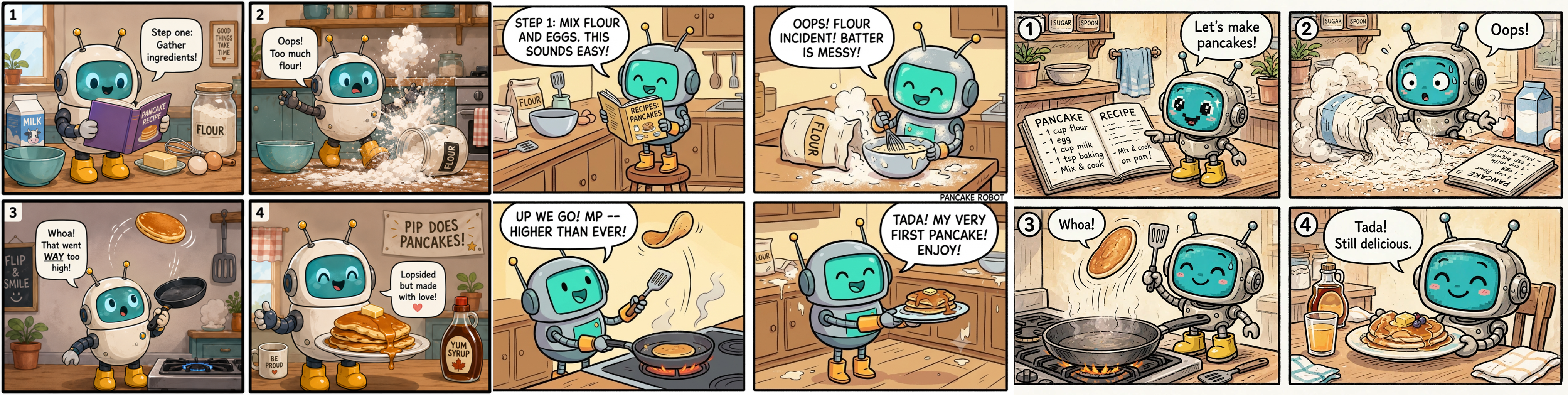
For my final test, I wanted to see how accurately the models could follow a complicated collection of specific instructions. AI image generators have a habit of overlooking small details when a prompt contains several independent requirements. Getting everything into the picture is one challenge, while getting the exact numbers and arrangements right is another.
The prompt was, "Create a realistic overhead photograph of a wooden desk with a notebook showing a dragon, a compass pointing north, a pocket watch showing 3:15, exactly three red wax seals, and a blue gemstone."
ChatGPT produced an attractive overhead photograph of an antique wooden desk, with an open notebook containing an intricate dragon illustration. The compass, pocket watch, three red wax seals, and bright blue gemstone were all present, and the composition looked carefully arranged.
Nano Banana 2.1 also included the requested objects, but the notebook featured a smaller, cleaner dragon illustration, while the wax seals, gemstone, compass and watch were arranged around it. Google's result looked more like a casually assembled collection of historical objects, but it did make a common AI error and got the time wrong, setting it for 3:00, not 3:15.
Approaching parityYou can access Nano Banana 2.1 in Gemini if you're a Google AI Plus, Pro or Ultra subscriber as it is the new default model. Free users will still be getting the older Nano Banana 2 model.
Nano Banana 2.1 is an excellent image generator, but ChatGPT is already so capable that Google's improvements don't necessarily translate into an obvious advantage. Both tools produced attractive, detailed images from relatively short prompts, and neither suffered the glaring visual mistakes that used to make AI-generated pictures instantly recognizable.
That said, different prompts, styles, and repeated generations could easily produce different results. What these tests do suggest is that the leading AI image generators have reached a remarkably high level of capability and are approaching parity in many everyday creative tasks.
That makes the competition more interesting, even if it makes choosing between them harder. The differences increasingly come down to taste and interpretation. Nano Banana 2.1 may be Google's latest impressive upgrade, but ChatGPT has made sure it won't be claiming the image-generation crown without a fight.
Categories: Technology
Pages

Custom Search